

App Store Screenshots (8)
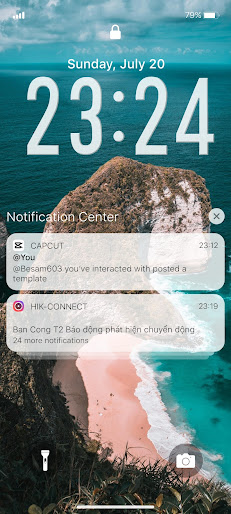


Design Analysis
Visual Design
Style: iOS Native
Key Features Shown
- •iOS Style Clock
- •Stacked Notifications
- •Passcode Keypad
- •Flashlight Shortcut
- •Camera Shortcut
- •Depth Effect Wallpaper
App Insights
Target: Android users seeking the aesthetic and functional experience of Apple's iOS interface, specifically in emerging markets.
- •Interstitials
- •Banner ads
- •Rewarded video ads
ASO Keywords:
About Lock Screen iOS 26
Open from the Lock screen & Notifications iOS 26 You can quickly view your recent notifications from the Lock screen by turn on your phone. You can also do these things from the Lock Screen & Notificaions iOS 26: - Tap a single notification or a group of notifications to view all of them for that app. - Swipe left over notifications to manage, view, or clear the notifications. - Manage alerts for specific apps. Learn how to set, use, and change a passcode on your device. Set a passcode on your phone to help protect your data. Set up a passcode - On your phone, open Lock Screen & Notification ap. - Tap Passcode option. - Enable Passcode and Enter a six-digit passcode. - Enter your passcode again to confirm it and activate it. To make Lock Screen & Notifications iOS 15 working most perfect. You must grant some special permissions like to: - CAMERA: To open camera in your phone. - READ_PHONE_STATE: To turn off lockscreen while calling. - NOTIFICATION ACCESS: To get notifications in your phone. - READ/WRITE_EXTERNAL_STORAGE: To download more wallpaper. - DRAW OVER SCREEN: To show Lock Screen & Notification in over all apps. How to use Lock Screen & Notificaions iOS 26: https://youtu.be/HS-L0jAF0Vw
Create screenshots like Lock Screen iOS 26
Use FlyerBanana's free editor to create professional App Store screenshots inspired by Lock Screen iOS 26's design. 100+ templates, device frames, and one-click export.
More Personalization Apps
View all

Emoji keyboard - Themes, Fonts
Personalization

Launcher OS™
Personalization


Facemoji AI Emoji Keyboard
Personalization

Nova Launcher
Personalization

Mods Addon Skins for Minecraft
Personalization

Themepack - App Icons, Widgets
Personalization