
App Store Screenshots (5)

Design Analysis
Visual Design
Style: Custom
Key Features Shown
- •Content categorization (Shows, Music, Gaming)
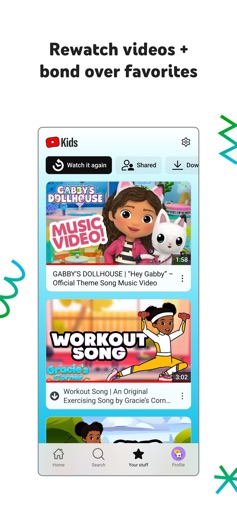
- •Watch history / 'Watch it again'
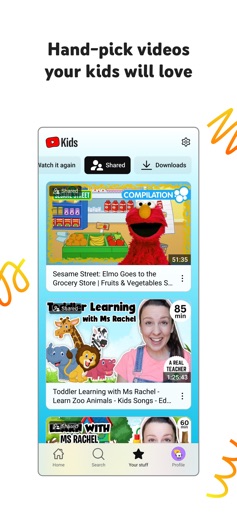
- •Shared content from parents
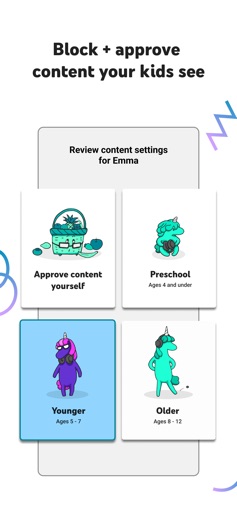
- •Age-based profile selection
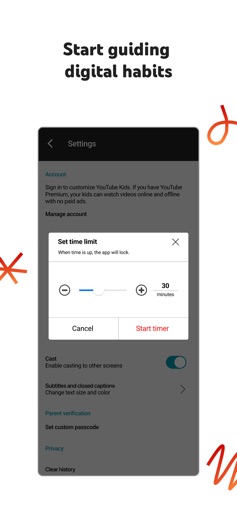
- •Screen time timer settings
App Insights
Target: Parents of children aged 0-12 seeking a curated, safe digital environment for video consumption.
- •Advertising
- •Ecosystem lock-in (Google/YouTube Premium integration)
ASO Keywords:
About YouTube Kids
Inspire your kids to uncover their unique interests Help your kids explore video content they love and parents trust, in an app made just for kids. With easy navigation tools and a suite of features, you can help your kids spend time online uncovering new interests, unleashing their imagination, and building their confidence in their own unique world. Help your kids grow at their own pace Your kids are unique, so they should only see content they're ready to explore. Decide what videos will help them make the most of their time online, then personalize individual profiles using custom content filters as they grow. - Help your youngest kids learn their ABCs, nurture their curiosity, and more in the Preschool mode. - Expand your kids interests to songs, cartoons, or DIY crafts in Younger mode. - Give your older kids the freedom to search popular music and gaming videos in Older mode. - Or hand-pick the videos, channels, and collections your kids can see in Approved Content Only mode. Rewatch videos and bond over favorites Quickly find your kids’ favorite videos and the content you’ve shared with them in the Watch it Again tab. Shape your kids’ viewing experience with Parental Controls Parental Control features help you limit what your kids watch and better guide their viewing experience. Our blocking process aims to help keep videos on YouTube Kids family-friendly and safe – but each family's preferences are unique. Don't like a video or channel, or see inappropriate content? Flag it for our team to review. Set a screen-time limit Encourage your kids to take a break in between exploring content. Use the Timer feature to freeze the app when screen time is up so your kids can apply their new skills to the real world. See important information - Parental setup is needed to ensure the best experience for your family. - Kids may see commercial content from YouTube creators that are not paid ads. - See The Privacy Notice for Google Accounts managed with Family Link for information on our privacy practices for signing in with a Google Account. - If your kids use the app without signing in with their Google Account, the YouTube Kids Privacy Notice applies.
Create screenshots like YouTube Kids
Use FlyerBanana's free editor to create professional App Store screenshots inspired by YouTube Kids's design. 100+ templates, device frames, and one-click export.