
App Store Screenshots (9)
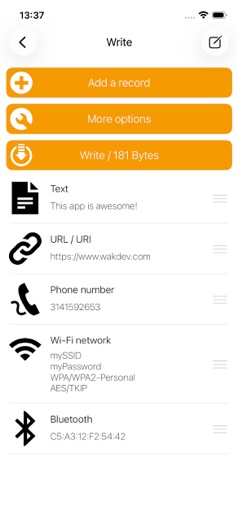
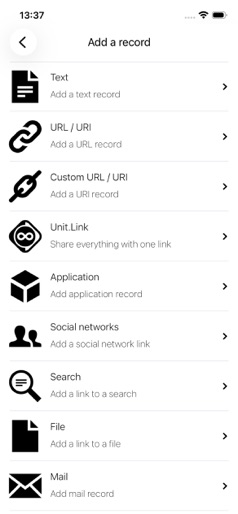

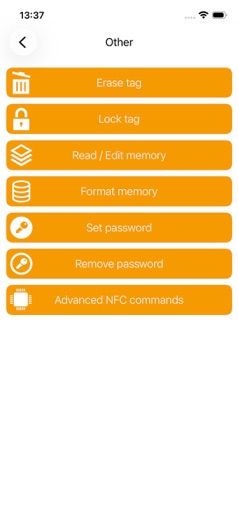
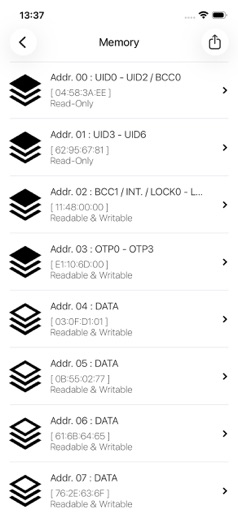
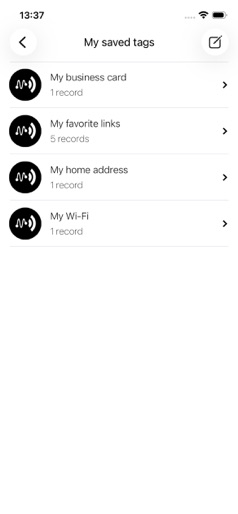
Design Analysis
Visual Design
Style: Custom
Key Features Shown
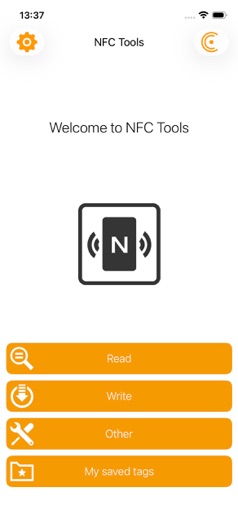
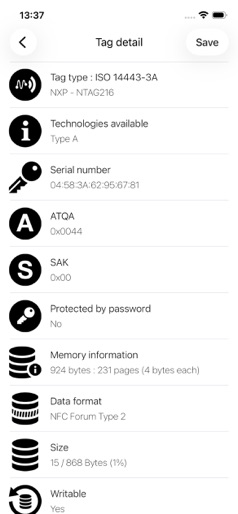
- •Tag Reading
- •Tag Writing
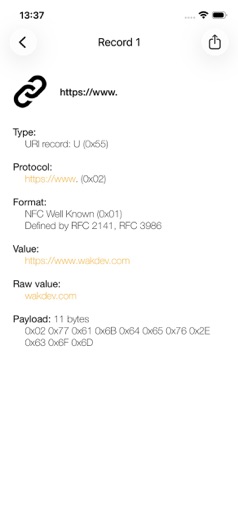
- •Record Management
- •WiFi/Bluetooth Writing
- •Social Network Linking
App Insights
Target: Tech enthusiasts, IoT developers, small business owners using digital business cards, and home automation hobbyists.
- •In-App Purchases (Pro Version)
- •Hardware Sales (Referenced in reviews/website)
ASO Keywords:
About NFC Tools
NFC Tools can read and write NFC tags. NFC Tools can read and write your NFC tags with a simple and lightweight user interface. By passing your device near an NFC chip, you can read the data it contains and interact with the content. The "Read" section allows you to see data such as: - the maker of the tag - the type of tag (ex : Mifare Ultralight, NTAG213) - the norm of the tag (ex : NFC Forum Type 2) - the available technology (ex: NFC A) - its serial number (ex : 04:85:c8:5a:40:2b:80) - the size of the tag and of the data on it - if you can write on the tag - all the data on the tag (NDEF format) NFC Tools can record standard information on your tags which will be compatible with any NFC device. For instance, you can store a VCARD to share your contact details easily, open an URL, share a phone number or even a geolocation. The "Write" section let you record standardised data such as: - a simple text - a link to a website - an email - a contact - a phone number - a predefined text message - an address or geolocation - a WiFi or Bluetooth configuration - personalised data - and more... The write function allows you to add as much data as you wish. This way you can record large quantities of information on your tag. The app also allows you to save the contents of your chip for later access. NFC Tools has been tested with the following NFC tags: - NTAG 203, 210, 210u, 212, 213, 213TT, 215, 216, 413 DNA, 424 DNA - Ultralight, Ultralight C, Ultralight EV1 - ICODE SLI, SLI-S, SLIX, SLIX-S, SLIX-L, SLIX2, DNA - DESFire EV1, EV2, EV3 - ST25TV, ST25TA - Felica If you encounter any problem, don’t hesitate to contact us. Notes: - Compatible from iPhone 7. - Use the "compatibility" mode to read/write Mifare Classic tags.
Create screenshots like NFC Tools
Use FlyerBanana's free editor to create professional App Store screenshots inspired by NFC Tools's design. 100+ templates, device frames, and one-click export.